
How to see your logo on a bag before you order
Before anyone pays for a sample, the first question is nearly always the same: how will our logo look on this bag? A sketch or a flat drawing does not really answer it. A real bag photo with your logo on it does.
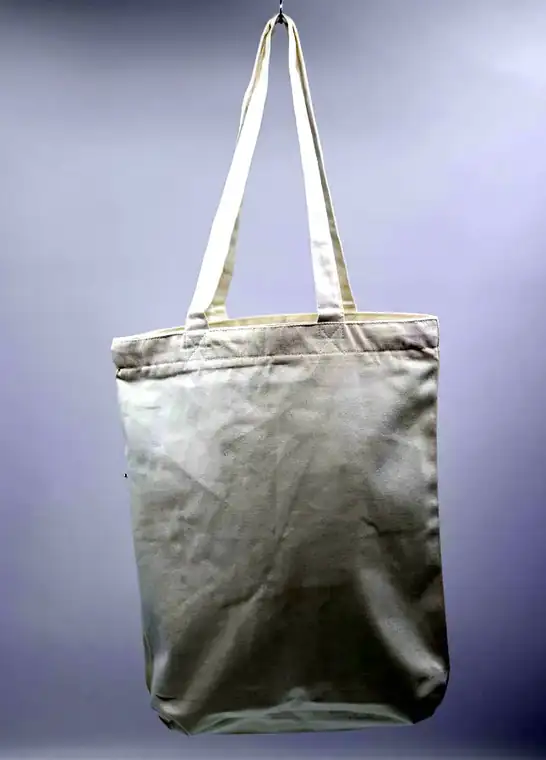
That is why we built a free Mockup Studio on our website. It uses 26 real blank bags from our catalogue, in jute, juco, cotton and canvas. You upload your logo, pick a bag and download a picture in a couple of minutes. There is nothing to sign up for.
In this guide: Your logo stays on your device · Three levels: Quick, Customise and Pro · Step by step · Tips for a clean mockup · What a mockup is, and what it is not · From the catalogue to the Studio · Questions buyers ask us
Your logo stays on your device
The Studio works inside your browser. Nothing is uploaded to Trenova Exim or anyone else; an image leaves your device only if you download it or send it to someone.
Three levels: Quick, Customise and Pro
Not every buyer needs the same detail, so the Studio has three levels. You can switch at any time at the top of the page.
- Quick: upload your logo or write your own text (there are ready-made phrases in 13 languages), choose a bag and download the mockup. Good for a first look.
- Customise: everything in Quick, plus a fabric filter (jute, juco, cotton and canvas), sliders to adjust the brightness, contrast and colour of your logo picture, the print finish and ink colour, logo size and position, the bag size with its drawing, and one picture of your design on every bag.
- Pro: everything in Customise, plus the details a sourcing team asks for: fabric weight, handles, gusset, inside lamination, back of the bag, labels and notes. You can download a one-page spec sheet with the mockup, the size drawing and your details.
Pro is about design and specification only. Quantity, destination and price come later, in our quotation.
Step by step
- Open the Mockup Studio and choose a level. Customise is a good place to start.
- Upload your logo, or write your own text. A PNG with a transparent background gives the cleanest result.
- Pick a bag. In Customise and Pro you can filter by fabric first.
- In Customise and Pro, choose the finish: screen print (one colour or multi-colour), digital print, embroidery or a woven label.
- Resize and move the logo until it looks right, and choose the bag size.
- Download the mockup, or the spec sheet in Pro. You can also send it to us on WhatsApp or by email from the same page.
Tips for a clean mockup
- Use your best logo file. A sharp PNG or a logo exported from vector artwork looks far better than a screenshot.
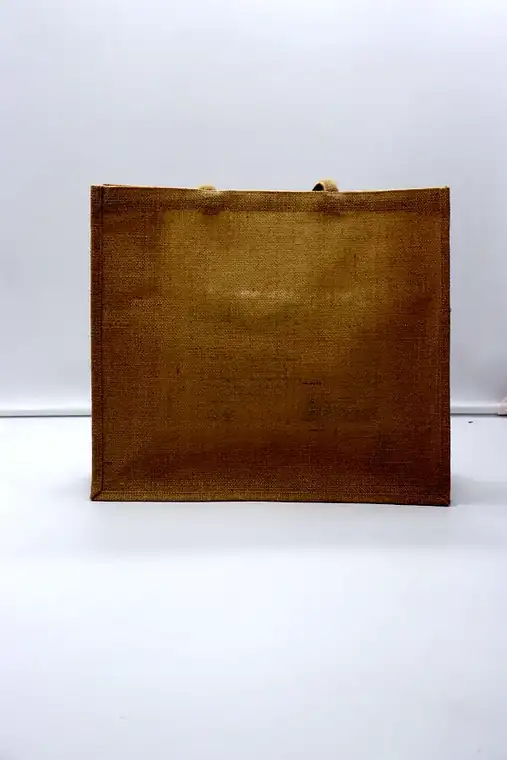
- Think about contrast. A dark logo reads well on natural jute; a light logo works on dark navy or black bags.
- Keep it simple for screen print. Very thin lines and very small text are harder to print sharply on textured jute. A slightly bolder version of the design often prints better.
- Try the same logo on several bags. The 'See on all bags' button puts your design on every bag in the Studio in one picture, which helps when you are choosing a style.
For print-ready files, see our guide on how to send logo artwork for bag printing.
What a mockup is, and what it is not
A mockup is a concept picture. Colours, print size and position are indicative, and the final bag is always confirmed on a physical sample. Samples typically take 5 to 10 days from approved artwork, and bulk production typically takes 25 to 30 days after the sample is approved.
From the catalogue to the Studio
If you are browsing our bag catalogue and see a bag you like, look for the gold button 'Try your logo on this bag'. It opens that bag straight in the Studio, ready for your logo.
Tell us the bag, the quantity and the destination on WhatsApp +91 90629 15151 or at exports@trenovaexim.com, or use the Request a quote form. We review your requirement and reply with a quotation.
Questions buyers ask us
Is the Mockup Studio free?
Yes. It is free to use and needs no sign-up.
Do you keep a copy of my logo?
No. The Studio works in your browser. Nothing is uploaded to us unless you choose to send the picture.
Is the print size on the mockup exact?
No. The mockup is a concept. The print size and position are confirmed on the physical sample.
Tell us what you need.
Product, quantity and destination is enough to start. We review your requirement and reply with a quotation.